
If your readers are unable to access the documentation online, you can easily provide them with a PDF export of the documentation for offline reference.
How to export to PDF?
PDFs are exported by version. To export a PDF:
From the sidebar, choose Version
Next to the title, click on Settings
Next to Export to PDF, choose Manage
In the PDF Exports window, click on Generate New PDF.
Once a PDF export job is initiated, you can monitor its progress in the PDF Exports window. Upon completion of the job, it will be marked as "Done," allowing you to easily download the generated PDF.
PDF Permalink
Once you have generated at least one PDF, you have the capability to create a permalink for downloading the PDF of that version. This permalink will consistently provide access to the most recent PDF that has been generated. You may share this link publicly, enabling your audience to conveniently download the latest version of the PDF.
To get a permalink:
From the sidebar, choose Version
Next to the title, click on Settings
Next to Export to PDF, choose Manage
In the PDF Exports window, click on Get Permalink . The URL will be copied to your clipboard.
The permalink is a distinctive link that remains active and cannot be revoked once it has been shared with someone. It is crucial to distribute the permalink only to the appropriate audience to ensure that the content is accessed by intended users.
Contents of the PDF
Our exported PDFs are structured to include the following elements in sequential order:
A front cover, if you provide it,
A page containing the project title and version name,
Table of contents,
The pages of each documentation,
The API references,
A back cover, if you provide it.
Customization of PDF
You can customize PDFs generated by DeveloperHub in the following ways:
Add a front cover in PDF format.
Add a back cover in PDF format.
Add a logo at the top of each page, or a full-size banner in PNG format.
Add a full-size banner at the footer of each page in PNG format.
To customize the PDF, contact us with the customization assets. You can view and modify the front and back covers from PDF settings, which you can find by clicking on while viewing your PDFs.
Limitations of PDF
The PDFs are not interactive: The links in pages do not reference other pages in the PDF.
Your project must be accessible through the custom domain, or the subdomain if the custom domain is not set.
Troubleshooting Failed Exports
There are certain situations where a PDF export may not succeed. However, you can be assured that if a PDF export indeed fails, our system will notify us of the issue, allowing us to investigate further and provide you with detailed information regarding the reason for the failure.
If your documentation is hosted behind a firewall, please ensure that you whitelist the user agent for the DeveloperHub.io PDF Exporter. This will enable seamless access and functionality for the export feature.
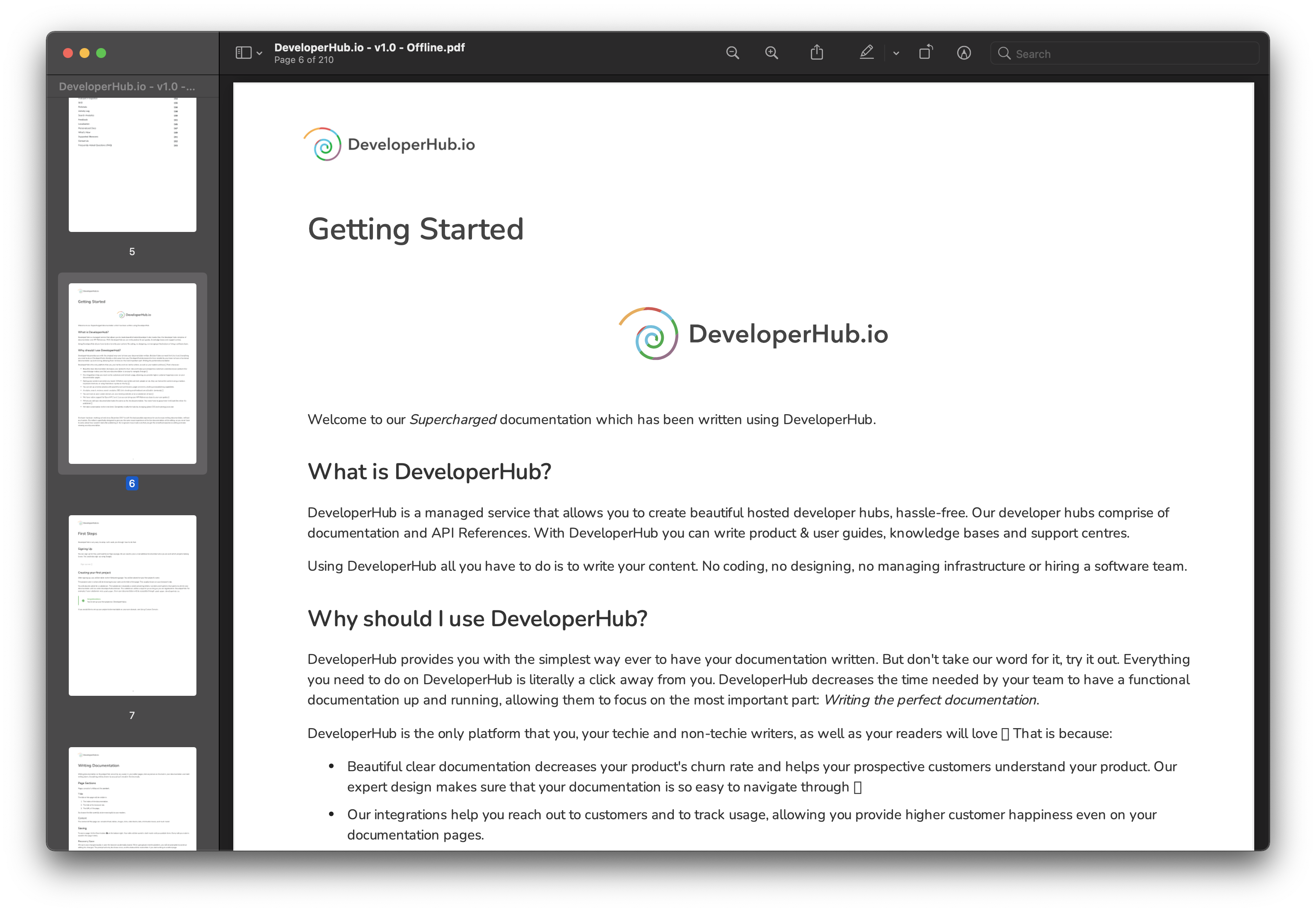
Example of PDF
Download our own latest PDF of our docs: