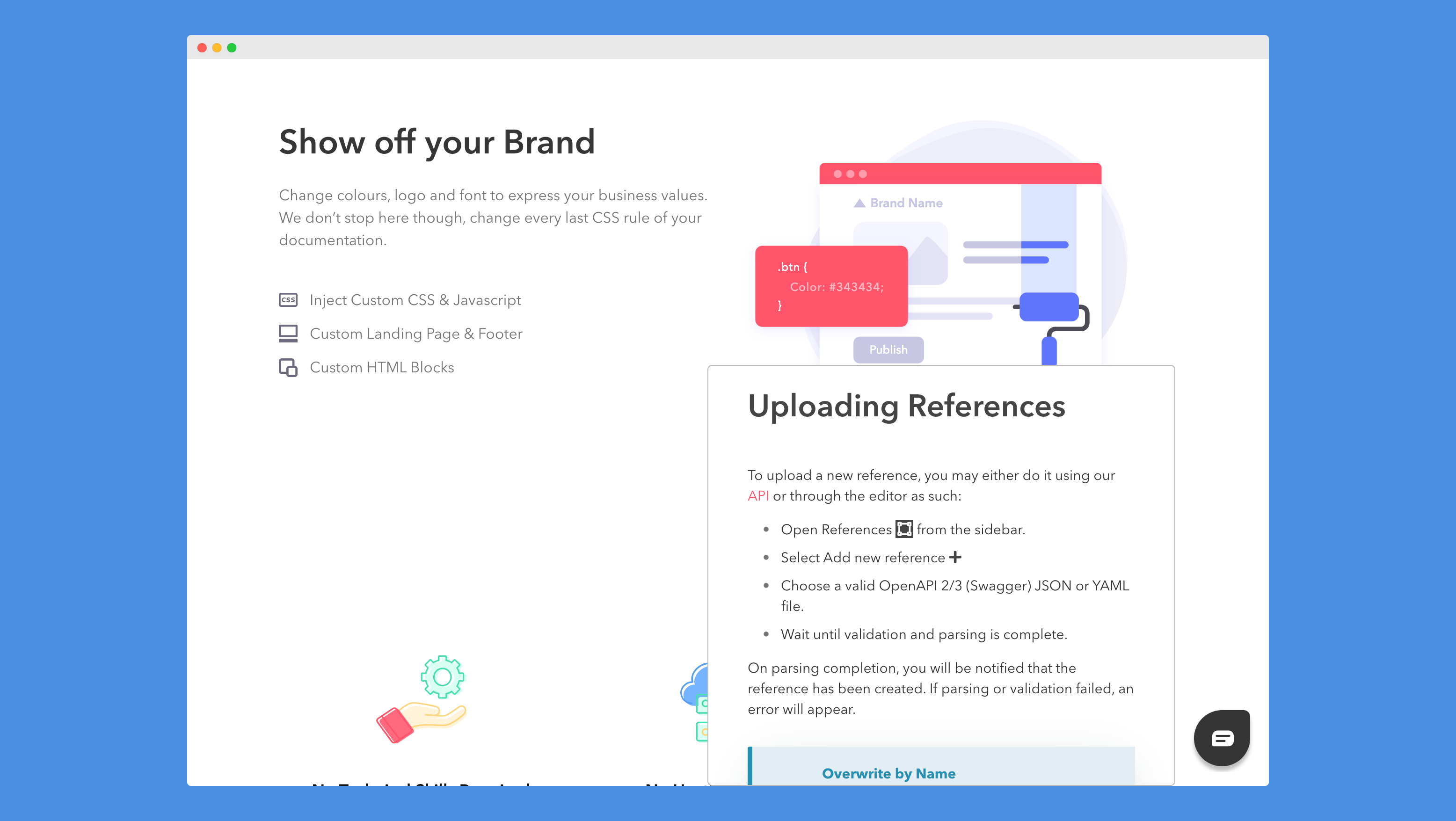
DeveloperHub was designed to unify the view between the editor and the live version.
There is no need to preview your documentation. The editor already is showing you the same view of how it will look to your documentation readers 😉
What was I thinking before?!
If you are really keen on previewing it, then you can see it live by publishing it.
URL Strategy
The URL, which is the link you see in your browser, plays a crucial role in determining which project, version, and section (documentation or API reference) are currently being accessed. It specifies the exact resources the user wishes to view, allowing for a seamless navigation experience across different parts of the documentation.
Here is a summary of how we load resources using URLs:
URL | Result |
|---|---|
| Loads the default page in the specified documentation, or the specified API reference in the default version. |
| Loads the page in the specified documentation in the default version |
| Loads the default page in the specified documentation, or the specified API reference in the specified version |
| Loads the specified page in the specified documentation in the specified version |
| Loads the landing page if enabled, or the default page in the default section of the default version |
The following URLs have been deprecated and are no longer recommended for use. However, for backward compatibility, they have been redirected:
URL | Redirected To |
|---|---|
|
|
|
|
|
|
|
|
|
|
Any other form of link will load the default page.
You can add a base path if you are hosting under your own existing website. The same rules apply, but the base path will be added right after the <project>. For example, instead of https://<project>/<version>/<documentation>/<page>, the link would be https://<project>/<base-path>/<version>/<documentation>/<page>.
Print-Optimized
Our pages are print-optimized (specially for A4 paper size). We recommend having the wide documentation layout when printing, and always printing from the published documentation site (not on the editor). If you are an enterprise customer, then you may also export an entire version as PDF.
Embed Mode
DeveloperHub sites can be embedded using iframe as needed. This is specially helpful if you wish to create a documentation widget so your reader can follow the instructions without leaving their tabs.
There are two types of embed mode:
Minimal: Hides the top navigation, footer, index and table of contents. Mode is
embed.Normal: Hides the top navigation and footer only. Mode is
embed_full.
In scenarios where the window width is small, minimal and normal modes exhibit similar behavior. This is because both the index and the table of contents are hidden by default when the window width is reduced.
Embed mode can be turned on by adding a ?mode=embed or ?mode=embed_full to any DeveloperHub URL (except landing pages). For instance, to show users the page at [https://dev.company.io/ios/getting-started](https://dev.company.io/ios/getting-started), you can load an iframe with src="[https://dev.company.io/ios/getting-started?mode=embed"](https://dev.company.io/ios/getting-started?mode=embed").
Here is a preview: