
Supercharged plan users can collaborate with their teammates on reviewing and writing documentation. Teammates can have different roles.
User Roles
Each teammate can have one of the four user roles that we support. In the order of most to least authoritative, the roles are:
Admin, where Owner is always an admin.
Publisher
Writer
Reviewer
A breakdown of the permissions is detailed below:
Role | Admin | Publisher | Writer | Reviewer |
|---|---|---|---|---|
Read draft and published pages | ✅ | ✅ | ✅ | ✅ |
See page history | ✅ | ✅ | ✅ | ✅ |
Comment on pages | ✅ | ✅ | ✅ | ✅ |
View teammates | ✅ | ✅ | ✅ | ✅ |
Download PDF export | ✅ | ✅ | ✅ | ✅ |
Create/edit page drafts | ✅ | ✅ | ✅ | ❌ |
Create/edit API references drafts | ✅ | ✅ | ✅ | ❌ |
Create synced blocks | ✅ | ✅ | ✅ | ❌ |
Create unpublished documentation section | ✅ | ✅ | ✅ | ❌ |
Delete pages | ✅ | ✅ | ❌ | ❌ |
Create/delete/publish versions | ✅ | ✅ | ❌ | ❌ |
Publish/delete documentation sections | ✅ | ✅ | ❌ | ❌ |
Publish/delete API references | ✅ | ✅ | ❌ | ❌ |
Modify documentation, API references and versions settings | ✅ | ✅ | ❌ | ❌ |
Edit/archive synced blocks | ✅ | ✅ | ❌ | ❌ |
Publish pages | ✅ | ✅ | ❌ | ❌ |
Import/export project | ✅ | ✅ | ❌ | ❌ |
Generate PDF export/permalink | ✅ | ✅ | ❌ | ❌ |
Change project variables | ✅ | ✅ | ❌ | ❌ |
Lock/unlock versions | ✅ | ✅ | ❌ | ❌ |
Change plan | ✅ | ✅ | ❌ | ❌ |
Manage teammates | ✅ | ❌ | ❌ | ❌ |
Change project settings | ✅ | ❌ | ❌ | ❌ |
Create/view/revoke API key | ✅ | ❌ | ❌ | ❌ |
Delete project | Owner only | ❌ | ❌ | ❌ |
Setting up Teammates
If you are on a paid plan, you can invite your teammates to collaborate from the Team menu.
Open the Team menu from the sidebar.
Click on "Invite teammate to collaborate"
Enter the e-mail address of the teammate to invite. You can add multiple at the same time by separating them with a comma.
If you want to change their role, click on their badge and change it.
If you want to change their name, click on their badge and select "Edit Name".
If they are not already a user, they will receive an email to help them sign up. They will be added to the list, and an "Invited" badge will be next to their e-mail address until they are signed up.
If they are already a user, they will receive an email to notify them that they can collaborate on this project. They will be automatically added and no prompt is required from them.
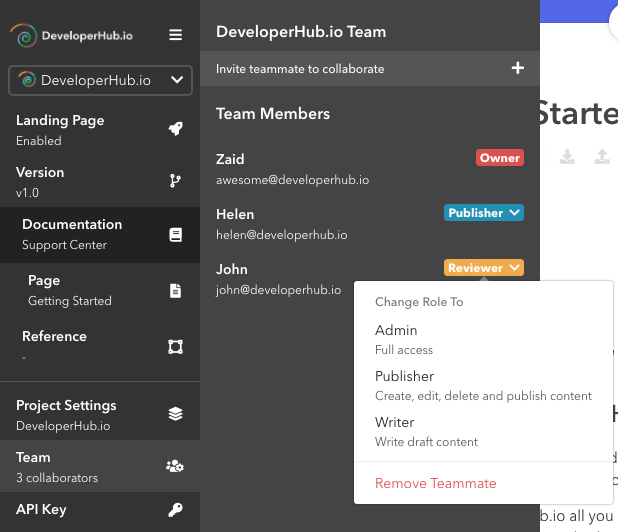
Remove a Teammate
To remove a teammate, do the following:
Open the Team menu from the sidebar.
Click on the badge next to the user and select "Remove teammate".
If your organization is managed (for Enterprise), check Deprovisioning Users.
Changing Project Ownership
To move ownership to another teammate:
Make sure that the user has been invited and has already joined the project as a teammate.
Open the Team menu from the sidebar.
Click on the badge next to the user and select "Make Owner".
Confirm your choice. The user will receive an e-mail that they became an owner of the project.
Once you transfer ownership, you cannot take it back unless if the new owner transfers it back to you.
If you have a supercharged plan, then the invoice by default would be sent to the e-mail address of the user who purchased the plan, not the owner. If you wish to modify the e-mail used for receiving invoices, check Changing Payment/Billing Details.